SEC536: Adversarial AI - Penetration Testing AI Systems
SEC536Offensive Operations, Artificial Intelligence

PowerShell allows us to create a transaction file of all commands entered and output received, perfect for pentests, incident response, and more!

I know a lot of penetration testers who do all of their testing up-front, and then work on the report at the end of the engagement. I think this is a mistake. When I'm working on a pen test, I work on my report every day. I think this improves the quality of my report, since I'm capturing the report information while I'm working, it reduces the ugh reporting phase of the engagement because I get the report done a little bit at a time, and it improves accuracy since I'm capturing details in the report while (or right after) I'm completing the actions.
Still, sometimes I need to go back to review my work to compare against newly discovered details, as a collaboration effort with people on my team, and to share verbose details of activities with a customer for accountability. Fortunately, PowerShell make this easy with the [code]Start-Transcript[/code] cmdlet. From the documentation:
Running [code]Start-Transcript[/code] with no arguments will create a text file in the current user [code]Documents[/code] directory. By default it will use a generated file name that starts with [code]PowerShell_transcript[/code], the workstation name, a random string, and the date/time:
PS C:\Users\Sec504> Start-Transcript
Transcript started, output file is C:\Users\Sec504\Documents\PowerShell_transcript.SEC504STUDENT.NWUY6V8q.20220716121258.txt
PS C:\Users\Sec504>
All commands you run in the session are logged, as well as the output from the commands. This includes not just PowerShell cmdlet, but any other command-line input and output. For example, with the transcript running I might use Netcat to test a service on a report system and grab a banner:
PS C:\Users\Sec504> nc -vvvw3z 10.10.75.1 22
10.10.75.1: inverse host lookup failed: h_errno 11004: NO_DATA
(UNKNOWN) [10.10.75.1] 22 (ssh) open
SSH-2.0-OpenSSH_7.6p1 Ubuntu-4ubuntu0.3
net timeout
sent 0, rcvd 41: NOTSOCK
The [code]nc[/code] command, the arguments, and the output are automatically recorded in the PowerShell transcript. I can stop the transcript using [code]Stop-Transcript[/code] and inspect the captured data using [code]Get-Content[/code]:
PS C:\Users\Sec504> Stop-Transcript
Transcript stopped, output file is C:\Users\Sec504\Documents\PowerShell_transcript.SEC504STUDENT.NWUY6V8q.20220716121258.txt
PS C:\Users\Sec504> Get-Content C:\Users\Sec504\Documents\PowerShell_transcript.SEC504STUDENT.NWUY6V8q.20220716121258.txt
**********************
Windows PowerShell transcript start
Start time: 20220716121258
Username: SEC504STUDENT\Sec504
RunAs User: SEC504STUDENT\Sec504
Configuration Name:
Machine: SEC504STUDENT (Microsoft Windows NT 10.0.19044.0)
Host Application: C:\Windows\System32\WindowsPowerShell\v1.0\powershell.exe
Process ID: 1676
PSVersion: 5.1.19041.1682
PSEdition: Desktop
PSCompatibleVersions: 1.0, 2.0, 3.0, 4.0, 5.0, 5.1.19041.1682
BuildVersion: 10.0.19041.1682
CLRVersion: 4.0.30319.42000
WSManStackVersion: 3.0
PSRemotingProtocolVersion: 2.3
SerializationVersion: 1.1.0.1
**********************
Transcript started, output file is C:\Users\Sec504\Documents\PowerShell_transcript.SEC504STUDENT.NWUY6V8q.20220716121258.txt
PS C:\Users\Sec504> nc -vvvw3z 10.10.75.1 22
10.10.75.1: inverse host lookup failed: h_errno 11004: NO_DATA
(UNKNOWN) [10.10.75.1] 22 (ssh) open
SSH-2.0-OpenSSH_7.6p1 Ubuntu-4ubuntu0.3
net timeout
sent 0, rcvd 41: NOTSOCK
PS C:\Users\Sec504> Stop-Transcript
**********************
Windows PowerShell transcript end
End time: 20220716121827
**********************
PS C:\Users\Sec504>
In addition to the Netcat command and the associated output, I also see header and footer information to indicate information about the PowerShell session and the system I'm using, as well as the time I stopped the transcript. Nice!
Personally, I would probably forget to consistently run [code]Start-Transcript[/code] for each new PowerShell session, so I make it happen automatically in my PowerShell profile (see the amazing article by Mick Douglas The Power of $PROFILE for tips on getting your PowerShell profile setup). Here are my goals for using [code]Start-Transcript[/code] in my day-to-day activities:
Fortunately, PowerShell handles most of this for us automatically with the default transcript file naming convention. We can further organize the transcript files into unique directories with the [code]Start-Transcript -OutputDirectory[/code] argument and [code]Get-Date[/code] formatted to return the current date in YYYY-mm-dd format:
PS C:\Users\Sec504> Start-Transcript -OutputDirectory "C:\PSLogs\$(Get-Date -UFormat %Y-%m-%d)"
Transcript started, output file is C:\PSLogs\2022-07-16\PowerShell_transcript.SEC504STUDENT.8c8DwbXh.20220716120159.txt
PS C:\Users\Sec504>
By specifying [code]-OutputDirectory[/code], PowerShell will record the transcript file in the target directory ([code]C:\PSLogs\2022-07-16[/code], in this example). This limits the number of files in a given directory, and it makes it easy to go back to a specific day of transcript files. The default transcript file name convention satisfies the rest of the requirements. The only remaining step is to add this line to the PowerShell profile:
Start-Transcript -OutputDirectory `"C:\PSLogs\$(Get-Date -UFormat %Y-%m-%d)"The easiest way to do this is to open the PowerShell profile with Notepad and paste in the line:
PS C:\Users\Sec504> notepad $profile
PS C:\Users\Sec504>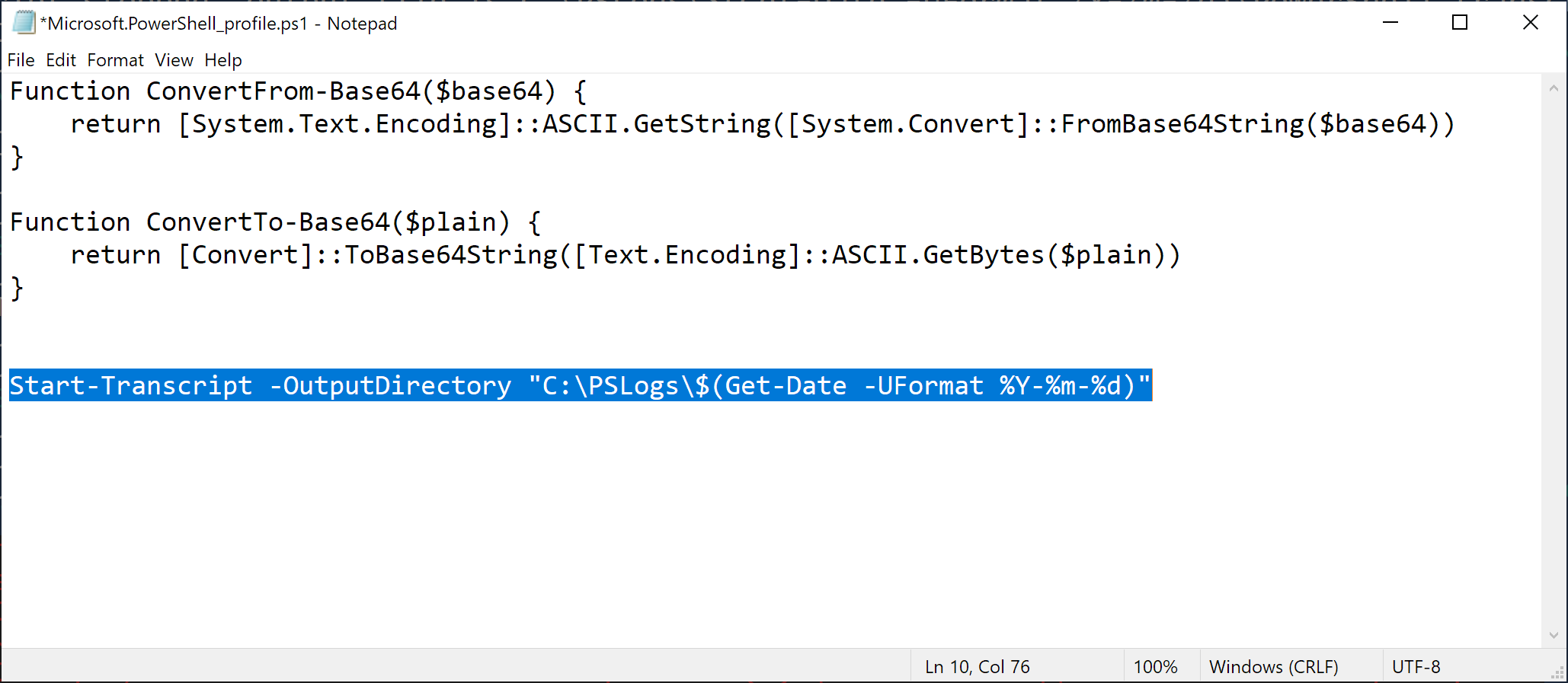
The best part of adding [code]Start-Transcript[/code] to your profile in this manner is that it gets out of your way. When you start a new PowerShell session, you will see a reminder that the transcript is running, but otherwise nothing else changes for how you work with PowerShell.
Windows PowerShell
Copyright (C) Microsoft Corporation. All rights reserved.

Try the new cross-platform PowerShell https://aka.ms/pscore6

Transcript started, output file is C:\PSLogs\2022-07-16\PowerShell_transcript.SEC504STUDENT.EArWgSeO.20220716125451.txt
PS C:\Users\Sec504>
At the end of an engagement, I zip up the transcript files and stash with somewhere until the customer data retention period expires. I feel better knowing that I have those activities saved, and have a complete data set for all the customer engagement activities, whether it is for a pentest, or an incident response engagement, or any other sensitive analysis work!
That's it for today, time to get back to reporting. 😬
-Joshua Wright
Return to Getting Started With PowerShell
Joshua Wright is the author of SANS SEC504: Hacker Tools, Techniques, and Incident Handling, a faculty fellow for the SANS Institute, and a senior technical director at Counter Hack.
