SEC536: Adversarial AI - Penetration Testing AI Systems
SEC536Offensive Operations, Artificial Intelligence

Let's build a useful PowerShell function to save useful commands for later reference: Save-Keeper!

My why did we pick a month with 31 days co-conspirator for the Month of PowerShell Mick Douglas offered up a quick Bash function a while back called [code]keeper()[/code]:
keeper() {
    fc -ln | tail -n 1 >> ~/.keeper.txt
}
I added it to my [code].bash_profile[/code] script, and whenever I'm particularly pleased with a Bash command that I want to save for future reference, I run [code]keeper[/code]:
PrintExport-5x7 $ ls
Crop-5x7-DSC_4745.jpg    Crop-5x7-DSC_4947.jpg    Crop-5x7-DSC_5043.jpg    Crop-5x7-DSC_5296.jpg
Crop-5x7-DSC_4791.jpg    Crop-5x7-DSC_4973.jpg    Crop-5x7-DSC_5187.jpg    Crop-5x7-DSC_5312.jpg
Crop-5x7-DSC_4830.jpg    Crop-5x7-DSC_5035.jpg    Crop-5x7-DSC_5217.jpg
PrintExport-5x7 $ for image in *.jpg; do newimagename=${image#Crop-5x7-}; echo "Renaming $image to mv $newimagename" ; mv $image $newimagename; done
Renaming Crop-5x7-DSC_4745.jpg to mv DSC_4745.jpg
Renaming Crop-5x7-DSC_4791.jpg to mv DSC_4791.jpg
Renaming Crop-5x7-DSC_4830.jpg to mv DSC_4830.jpg
Renaming Crop-5x7-DSC_4947.jpg to mv DSC_4947.jpg
Renaming Crop-5x7-DSC_4973.jpg to mv DSC_4973.jpg
Renaming Crop-5x7-DSC_5035.jpg to mv DSC_5035.jpg
Renaming Crop-5x7-DSC_5043.jpg to mv DSC_5043.jpg
Renaming Crop-5x7-DSC_5187.jpg to mv DSC_5187.jpg
Renaming Crop-5x7-DSC_5217.jpg to mv DSC_5217.jpg
Renaming Crop-5x7-DSC_5296.jpg to mv DSC_5296.jpg
Renaming Crop-5x7-DSC_5312.jpg to mv DSC_5312.jpg
PrintExport-5x7 $ keeper
PrintExport-5x7 $ tail -1 ~/.keeper.txt
    for image in *.jpg; do newimagename=${image#Crop-5x7-}; echo "Renaming $image to mv $newimagename" ; mv $image $newimagename; done
In this Bash example, I used a [code]for[/code] loop to rename a bunch of files, removing the [code]Crop-5x7-[/code] beginning of the file name using the Bash shell parameter expansion feature [code]{image#Crop-5x7-}[/code]. Then, because I was pretty pleased with myself, I ran [code]keeper[/code] to save that command to [code]~/.keeper.txt[/code] so I could reference and reuse it later.
We can use [code]Get-History[/code] to see a list of commands that we ran in the current session:
PS C:\Users\Sec504> Get-History

  Id CommandLine
  -- -----------
   1 Get-WmiObject -Class Win32_Product
   2 $InstalledSoftware = Get-ChildItem "HKLM:\Software\Microsoft\Windows\CurrentVersion...
   3 foreach($obj in $InstalledSoftware){write-host $obj.GetValue('DisplayName') -NoNewl...
   4 $InstalledSoftware = (Get-ChildItem "HKLM:\Software\Microsoft\Windows\CurrentVersio...
   5 $InstalledSoftware = (Get-ChildItem "HKLM:\Software\Microsoft\Windows\CurrentVersio...
   6 $InstalledSoftware = Get-ChildItem "HKLM:\Software\Microsoft\Windows\CurrentVersion...
   7 ForEach-Object ($obj in $InstalledSoftware){ Write-Host $obj.GetValue('DisplayName'...
   8 foreach ($obj in $InstalledSoftware){ Write-Host $obj.GetValue('DisplayName') -NoNe...
The parameter [code]CommandLine[/code] is what we want, and can use [code]Select-Object -Last 1[/code] to retrieve the last command:
PS C:\Users\Sec504> Get-History | Select-Object -Last 1 -Property CommandLine

CommandLine
-----------
foreach ($obj in $InstalledSoftware){ Write-Host $obj.GetValue('DisplayName') -NoNewline...
Perfect! Now, just add the [code]Out-File[/code] to save to [code]~/keeper.txt[/code] (I'm recalling the previous [code]foreach[/code] command before running [code]Get-History[/code] for consistency in examples):
PS C:\Users\Sec504> Get-History | Select-Object -Last 1 -ExpandProperty CommandLine | Out-File -Append ~/keeper.txt
PS C:\Users\Sec504> Get-Content C:\Users\Sec504\keeper.txt
foreach ($obj in $InstalledSoftware){ Write-Host $obj.GetValue('DisplayName') -NoNewline; Write-Host " - " -NoNewline; Write-Host $obj.GetValue('DisplayVersion') }
PS C:\Users\Sec504>
A couple of things to point out here:
Next, all that is needed is to add this as a function to the PowerShell profile:
PS C:\Users\Sec504> notepad $profile
PS C:\Users\Sec504>
To keep with the Verb-Noun convention, I called this [code]Save-Keeper[/code]:
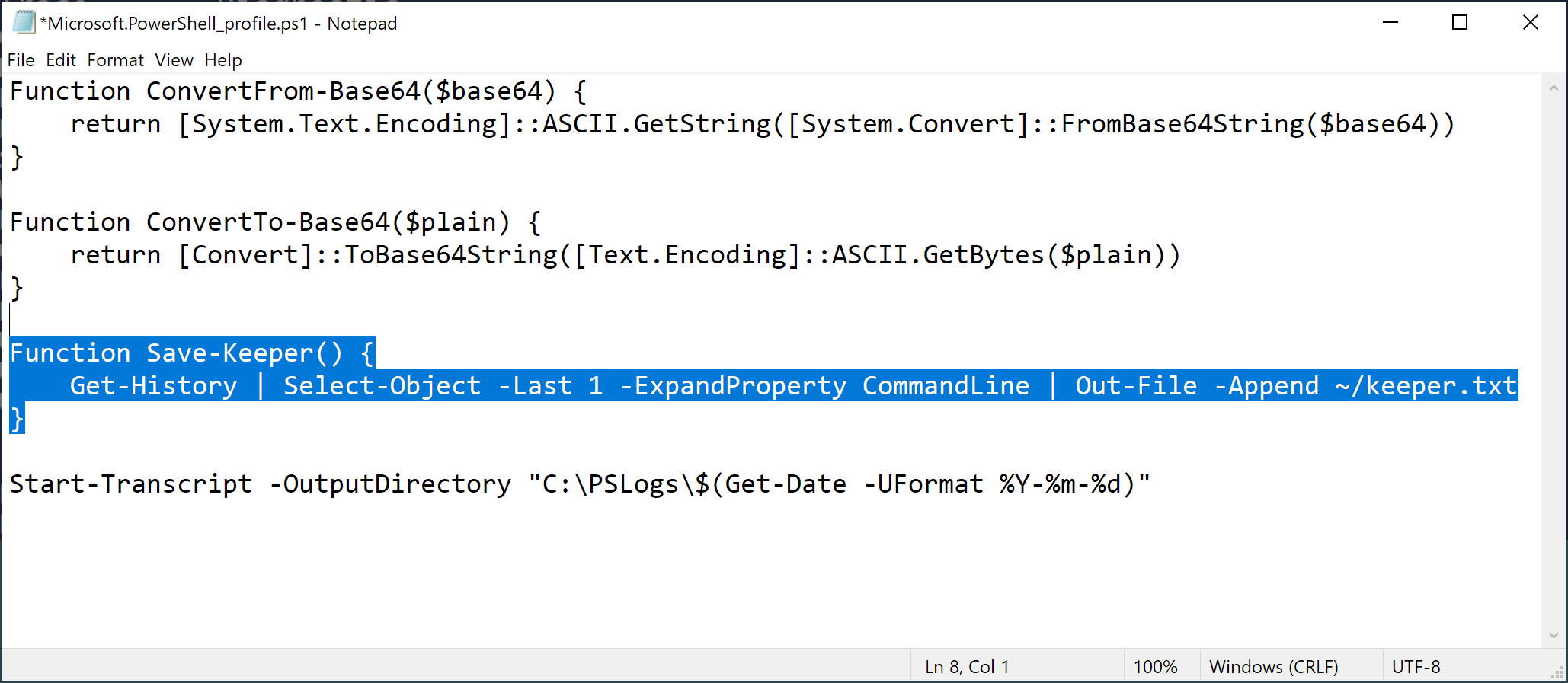
Here is the function to copy-paste into your PowerShell profile.
Function Save-Keeper() {
    Get-History | Select-Object -Last 1 -ExpandProperty CommandLine | Out-File -Append ~/keeper.txt
}
Then you can close and open a new PowerShell session, or reload your PowerShell profile:
PS C:\Users\Sec504> . $profileLet's put this new function to use. I want to build a list of installed software on Windows by enumerating the software uninstall keys for [code]HKEY_CURRENT_USER[/code] and [code]HKEY_LOCAL_MACHINE[/code]. First, identify the keys using [code]Get-ChildItem[/code] in the variable [code]$InstalledSoftware[/code]:
PS C:\Users\Sec504> $InstalledSoftware = Get-ChildItem "HKLM:\Software\Microsoft\Windows\CurrentVersion\Uninstall", "HKCU:\Software\Microsoft\Windows\CurrentVersion\Uninstall"
PS C:\Users\Sec504> Save-Keeper
PS C:\Users\Sec504>
Next, get the [code]DisplayName[/code] and [code]DisplayVersion[/code] elements for each key:
PS C:\Users\Sec504> foreach ($obj in $InstalledSoftware){ Write-Host $obj.GetValue('DisplayName') -NoNewline; Write-Host " - " -NoNewline; Write-Host $obj.GetValue('DisplayVersion') }
7-Zip 19.00 (x64) - 19.00
 -
 -
 -
 -
Git version 2.21.0 - 2.21.0
 -
 -
 -
 -
 -
Process Hacker 2.39 (r124) - 2.39.0.124
Rekall v1.6.0 Gotthard -
 -
USBPcap 1.1.0.0-g794bf26-5 - 1.1.0.0-g794bf26-5
 -
Update for Windows 10 for x64-based Systems (KB4480730) - 2.55.0.0
Update for Windows 10 for x64-based Systems (KB4023057) - 2.67.0.0
OpenCL™ runtime for Intel® Core™ and Xeon® Processors - 6.4.0.25
Microsoft Visual C++ 2013 x64 Additional Runtime - 12.0.40649 - 12.0.40649
Java 8 Update 111 (64-bit) - 8.0.1110.14
PowerShell 7-x64 - 7.2.3.0
Microsoft Visual C++ 2008 Redistributable - x64 9.0.30729.6161 - 9.0.30729.6161
Java SE Development Kit 8 Update 111 (64-bit) - 8.0.1110.14
Microsoft Update Health Tools - 3.67.0.0
Microsoft Visual C++ 2019 X64 Minimum Runtime - 14.24.28127 - 14.24.28127
Microsoft Visual C++ 2019 X64 Additional Runtime - 14.24.28127 - 14.24.28127
Microsoft Visual C++ 2013 x64 Minimum Runtime - 12.0.40649 - 12.0.40649
VMware Tools - 11.0.6.15940789
PS C:\Users\Sec504> Save-Keeper
By running [code]Save-Keeper[/code] after the commands, I can stash those commands in my [code]keeper.txt[/code] file:
PS C:\Users\Sec504> Get-Content C:\Users\Sec504\keeper.txt
...
$InstalledSoftware = Get-ChildItem "HKLM:\Software\Microsoft\Windows\CurrentVersion\Uninstall", "HKCU:\Software\Microsoft\Windows\CurrentVersion\Uninstall"
foreach ($obj in $InstalledSoftware){ Write-Host $obj.GetValue('DisplayName') -NoNewline; Write-Host " - " -NoNewline; Write-Host $obj.GetValue('DisplayVersion') }
This works great, and I'll be sure to use it immediately after interesting commands to populate the [code]keeper.txt[/code] file with interesting tidbits.
Consider extending the [code]Save-Keeper[/code] function on your own to add some more features:
If you add these (or more) features to [code]Save-Keeper[/code], let me know! Tag me [code]@joswr1ght[/code] or [code]#MonthOfPowerShell[/code] in your tweet, DM me, or email me! Thanks!
-Joshua Wright
Return to Getting Started With PowerShell
Joshua Wright is the author of SANS SEC504: Hacker Tools, Techniques, and Incident Handling, a faculty fellow for the SANS Institute, and a senior technical director at Counter Hack.
