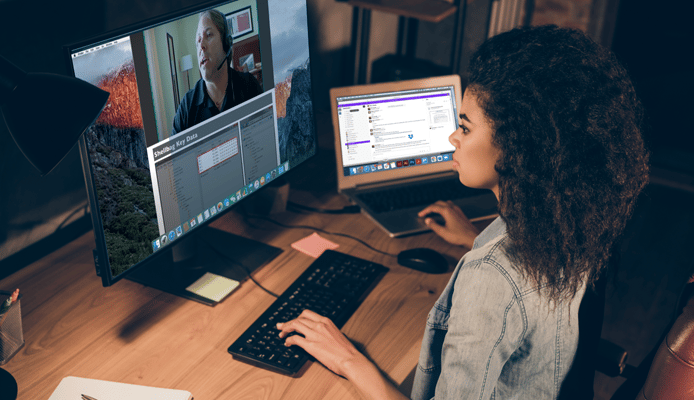
SANS @Home, awesome! Not like being there, but almost better, you can look up sites as people share or the instructor shares, and bookmark them! - John Cahill, Piedmont Natural Gas
What is the minimum computer hardware that I need?
CPU:
Intel-based systems should have Pentium III 500 MHz or better CPU.
PowerPC based systems should have a G3, G4 or G5 processor.
Memory:
The computer should have at least 256 MB of RAM.
Disk Space:
The computer should have at least 20MB of disk space free.
Audio:
The computer needs to have a sound card. You either need built-in speakers (common on laptops) or external speakers or a headset plugged in to the audio speaker jack.
A microphone is optional. The primary method for asking questions will be by using the embedded Direct Messaging capability in the Elluminate session.
Camera:
A video camera is not required for SANS@Home courses.
Windows: You can use 98/Me/2000/XP. For Windows 2000, likely
both Workstation and Server will work. Even though it's not listed,
Windows 2003 should work also. For Windows XP, both Home and
Professional versions are supported.
Mac OS: You need to be using either 9.2 or 10.2 or newer for the 10.x branch.
Unix: Solaris and Linux are explicitly supported. Most likely
other Unix variants will work as well as long as you have the Java
Runtime Environment installed.
Your computer needs to have the Java Runtime Environment (JRE) software installed. This provides the Java Virtual Machine (JVM) needed to
process the Java code used by Elluminate.
The 1.3.x and older 1.4.x versions of JRE will NOT work as they do not
properly support Secure Sockets Layer (SSL) which is used to encrypt
the network connections.
Any 5.0 Update ## version of the JRE software will work. You can get the JRE software from http://java.sun.com/javase/downloads/index.jsp.
The latest version at this time is 5.0 Update 9.
If you have an older version of the JRE installed, after updating to a newer version, you should uninstall the older version.
Elluminate will work with network connections as low as 28.8Kbps
dial-up connections. We recommend a broadband connection to avoid excessive buffering during class.
The only network connections that are not recommended for use with the Elluminate SANS@Home classes are satellite connections. The
problem is the latency introduced by the time it takes for the signal
to go up to and come back down from the satellite.
What network access do I need to connect to SANS' server?
Elluminate's preferred connection method is to use TCP port 2187 to
our server. Our Elluminate server's IP address is currently
65.173.218.80. Optionally, TCP port 443 can be used instead.
If you are behind a firewall that is blocking outbound connections on TCP port 2187, you have two options.
First, contact your organization's IT security folks and ask them to modify the firewall policy so your computer can connect directly to
our server. See the information above for the necessary port and IP address.
Second, if they will not modify the firewall, our Elluminate server is also listening for connections on TCP port 443. This is the port that is normally used for HTTPS (SSL-secured HTTP web traffic).
If you are trying to connect to one of our Elluminate sessions and the connection is failing, click on 'Session -> Proxy Configuration...' and select 'HTTP direct' as the connection method.
Now click on 'Session -> Join Class...'. Your client will now try connecting to our server on TCP port 2187, TCP port 80 and TCP port 443.
If you still can't connect, or can connect, but keep getting disconnected every minute or so, you may be behind a web proxy server. Please review the information below in this case.
If you are trying to connect to one of our Elluminate sessions and the
connection is failing, or you are able to connect but keep getting
disconeccted every minute or so, click on 'Session -> Proxy Configuration...' and select 'HTTPS proxy server' as the connection method. Then replace
the Server and Port information with the IP address and port of your
organization's web proxy server.
Now click on 'Session -> Join Class...'. Your client will now try connecting to your proxy server and passing on a request to connect to
our server on TCP port 443.
If you still can't connect, your organization appears to be using a proxy server that does not like longtime connections that are being
maintained by your machine connecting to our Elluminate server.
In this case, you will need to follow the option above
and get your organization to modify their firewall policy.
Login to the SANS Portal at https://portal.sans.org. Click on 'Self Study Files' and then click on the link for your SANS@Home class. On
this page there is a link list of Sessions. The current Session link will be available one hour before class begins and will be labeled "Live Session".
Click on the "Live Session" link then click OK in the Java Web Start popup. Your Course Meeting will download and open.
Login to the SANS Portal at https://portal.sans.org. Click on 'Self
Study Files' and then click on the link for your SANS@Home class. At the bottom of this page under the "Evaluation Forms" section there is a link that will take you to the class evaluation page.
The most current session will be selected for evaluation by default. You can evaluate a specific session by select it from the "Date of the Webcast" drop-down.
Login to the SANS Portal at https://portal.sans.org. Click on 'Self Study Files' and then click on the link for your SANS@Home class. On
this page there is a link list of Course Sessions.
Once you have found the recording, click on the link then select "Open With" then click OK for the Java Web Start program. Your Course Recording will download and open.
NOTE: Do not save the .jnlp file. You must open the session while connected to the internet to view.
I hear the audio but the instructor sounds like "Alvin the Chipmunk"
If there are network delays, either on your end or on the instructor's end, Elluminate will buffer the audio stream until the connection is
re-established and then sends it out to you at an accelerated pace so
that you can "catch up" to realtime.
As a result of the speedup process, the instructors voice sounds like a higher pitch.
I keep getting disconnected for the Elluminate session.
You are probably behind a firewall that is blocking your attempt to
connect directly to our server and are trying to connect by using your
proxy server. Some proxy servers do not like long-lived connections
and will disconnect them after a certain interval. Please review the
information above.
I'm getting the error message "Unable to configure audio"
Your Java application cache on your computer may have gotten corrupted. So far, we have only seen this occur on Windows systems. On a Windows
box, open the Control Panel and start the Java applet. On the General
tab, click 'Delete Files...'. On the next window, leave all three
options selected and click 'OK'. Click 'OK' on the Java applet window.
Now connect to our Elluminate server again. Your computer will re-download the 6.3MB of Java code files from our server need to build
the Elluminate classroom.
I'm getting the error "Unable to launch the specified application"
Check the version of Java Runtime Environment (JRE) that you are running. If you have 1.3.x or 1.4.x, please refer to section 2.3 of the FAQ. You need to update to version 5.x.
You may be experiencing network congestion or delays on your end or the instructor may be experiencing network congestion or delays on their end. We have indicators in the Elluminate room for each participant that tell us who is experiencing any delays.
If just one or two students are having audio delays, that is a strong indication that the problem is on the student's end.
If all of the students are having audio delays, that is a strong indication that the problem is on the instructor's end.
If all of the students have audio and whiteboard delays, and a significant portion of the students keep getting disconnected from the room, that would be a strong indication that the problem is on our end where the server is located.
The SANS@Home technical support person in the room will be contacting students they see having delays to let them know that we are aware of it and to help troubleshoot the issue if possible.
If the delays make listening to the live class too difficult for you, each class is recorded and the recordings are normally available within 30 minutes of the end of class.
If network problems on the instructor's end or on our end interfere with the class significantly, we will cancel class and schedule a makeup session when it can be run normally.